Real-time voxel destruction in Unity.
Engineered for Chaos, Perfected for Performance
Make destruction part of the gameplay. BoxCutter fragments voxel objects at runtime, so you can break walls, damage props, and detach parts without preparing pre-fractured versions of every model. Import a MagicaVoxel .vox file, assign it to a BoxObj, and configure a BoxCutterCaller to trigger destruction. Choose a fragmentation pattern, tune the fragment sizes and forces, and preview the result in the editor. Connected pieces retain their support while unsupported pieces fall. Use groups and attachment rules for moving assemblies and rigs, then extend the behavior through events and custom data.
01 / GETTING STARTED
Requirements and preparation
Import BoxCutter into your Unity project through the Package Manager, then let Unity finish importing assets and resolving package dependencies before opening a demo scene.
BoxCutter has been tested on the following desktop platforms:
| Platform | Supported configuration |
|---|---|
| Windows | Windows 10 or 11 |
| macOS | macOS 13 or later, on Apple Silicon and Intel Macs |
| Linux | Ubuntu 20 or later |
BoxCutter is written using only standard Unity and C# features and does not rely on any hardware, OS specific code or native plugins. It works on all Unity supported platforms, including desktop, mobile, WebGL, and VR.
BoxCutter has been tested on the following Unity versions and render pipelines.
| Unity version | Built-in | URP | HDRP |
|---|---|---|---|
| 2022.3.62f3 | Compatible | Compatible | Compatible |
| 6000.3.8f1 | Compatible | Compatible | Compatible |
Model preparation
- Prepare MagicaVoxel
.voxfiles and matching GameObjects. Assign the voxel data to each object’sBoxObjcomponent. - Make pivot changes in MagicaVoxel. BoxCutter reconstructs meshes from the original voxel data, so pivots changed in another tool can cause offsets.
- Use connected voxel objects for rigs. Skinned meshes are not supported.
- If another voxel importer is installed, follow the alternate
.bcvoximporter workflow to avoid conflicts.
With the package and models ready, follow Quick setup to add the managers, destructible objects, and a destruction caller to your scene.
Quick setup
Start with a demo scene, then add the same components to your own scene.
- Explore the examples.
Open the demo scenes in
Assets/BoxCutter/DemoScene/Sceneto see the available setups. - Add the managers.
Drag the
BoxCutterManagersprefab into your scene. It contains all of the managers. - Make objects destructible.
Add a
BoxObjcomponent to each GameObject you want to fragment. Use GameObjects matching your MagicaVoxel.voxmodels, import those files, and assign them tomagicaVoxelData. - Create a destruction trigger.
Add
BoxCutterCallerto an empty GameObject to serve as your destruction event trigger. - Configure fragmentation.
Use
FragSettingsto control fragment patterns, sizes, and physics properties. See fragmentation settings.
Manager settings
Diagonal connections
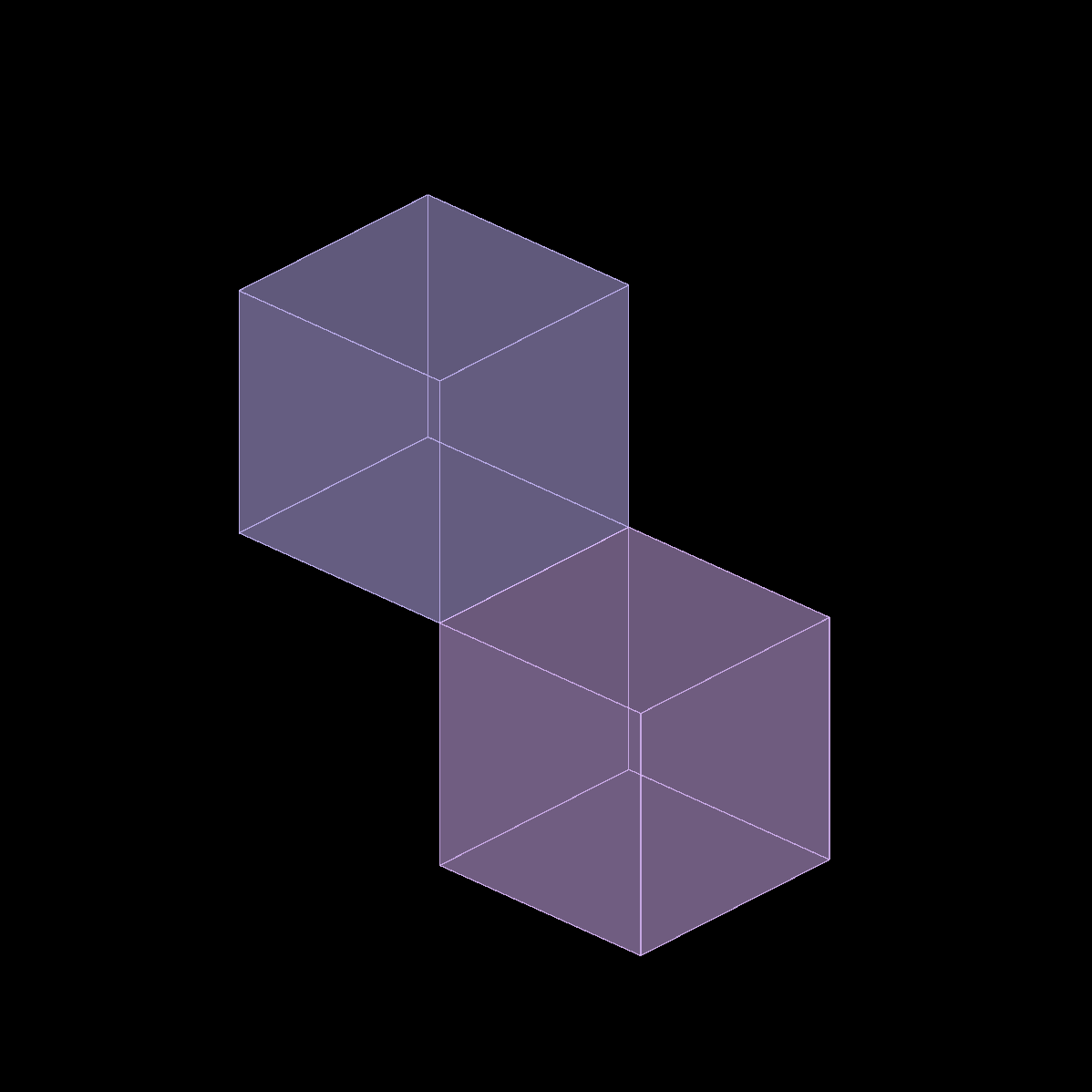
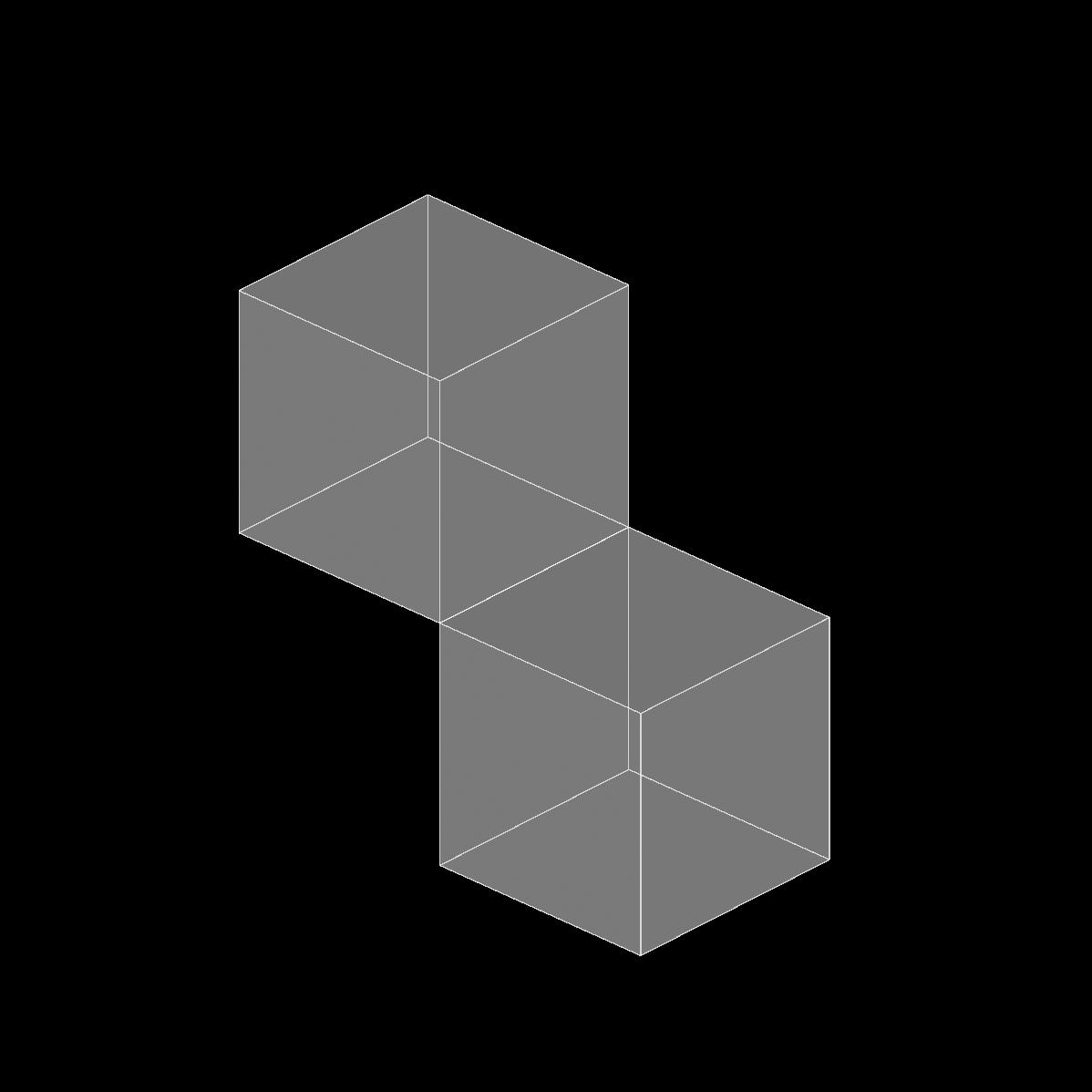
Enable ignoreDiagonalsInIsland to have BoxCutter consider diagonal connections when identifying voxel islands or groups. With the setting off, the illustrated voxels form two separate groups; with it on, both voxels belong to a single group.
Debris cleanup
Enable canReturnDebris to remove smaller fragments automatically over time. Enable canReturnFallenIsland for the larger chunks.
Voxel importers
If your project includes another voxel importer, such as Voxel Toolkit: MagicaVoxel Importer & Optimizer or Voxel Importer, use the alternate importer to avoid conflicts.
- Import the
BCVoxImporterpackage inBoxCutter\Editor\Scripts. - Rename your
.voxfiles to.bcvoxbefore importing them.
This replaces BoxCutter’s default importer with one that only handles .bcvox files.
02 / STRUCTURAL CONNECTIONS
Connection states
BoxCutter uses three physics states to simulate structural behavior.
| State | Behavior | Typical use |
|---|---|---|
| Disconnected | Active physics simulation. | Fragments that have broken away from structures, debris, and projectiles. |
| Connected | Remains static. | Structural elements that are part of a larger stable system. |
| Anchored | Permanently fixed; provides structural support. | Foundation elements, load-bearing walls, and bedrock. |
Objects connected to an Anchored object inherit stability and do not fall when their other connections are severed.
BoxCutterGroup module
BoxCutterGroup isolates dynamic multi-object models from the Fragment Physics System, preventing unwanted connections to the environment while maintaining internal structural relationships.
Applications
Use it for moving platforms such as elevators, trains, and conveyor systems, or interactive objects such as doors, drawers, and mechanical assemblies.
Configuration
Add BoxCutterGroup to a parent object and assign all related BoxObj components. This maintains internal connections while preventing external attachments.
White listing
Enable canWlAttach to control which objects can connect. Use it to define which objects structurally support others and limit connection analysis to relevant object groups.
Rig setup
- Add a group.
Assign all relevant boxes to it.
- Set each box.
Set
state = Connected,isDynamic = True, andcanWLAttach = True. - Assign bone connections.
In
whiteListedAttach, assign the boxes that each bone connects to. - Configure required connections.
On the rig’s root, enable
canRequireBoxesand setcanUseRequireAsAnchortoTrue. During solving, an island with missing required boxes is treated as floating and drops.
This setup prevents floating limbs through bidirectional validation. For example, the hip requires both feet in its connection chain, and the feet also require the hip. If an intermediate bone is missing, the corresponding limbs detach and fall.
The same technique works for complex models that are not rigs.
03 / FRAGMENTATION
Fragmentation settings
Create a fragmentation profile through Assets → Create → BoxCutter → Frag Setting. Each FragSettings asset can be reused across multiple BoxObj instances.
Preview settings live by enabling visualizeDestruction on BoxCutterCaller.
Inheriting children
BoxCutter supports attaching other objects to destructible objects. Enable canInheritChildTrans and assign the child objects that should follow fragments.
For example, a wall may have a projector decal. When a new fragment intersects the assigned decal, BoxCutter reparents the decal to that fragment, keeping it attached during destruction.
Performance
Configuration settings
- Tune
maxDebrisPerFramein the manager to spread fragment work across frames. - Enable
canReturnFallIslandandcanReturnDebristo clean up fragments over time. - Enable
canMaxActiveDebrisAndIslandto cap active physics objects. - Use
canWlAttachwhenever possible to speed up connection searches. - Choose a faster
colliderGenModewhere it meets your game’s requirements. - For
Smartcollider mode, adjustkdCellTightness. Higher values produce more accurate colliders at a performance cost. - Tune the object pooler’s
refillAmountandpoolSizefor your game.
Model preparation
- Minimize unique colors. Fewer colors help greedy meshing reduce the complexity of downstream calculations.
- Split very large models into smaller, distinct parts to reduce the work needed when a specific area is destroyed.
04 / API AND CUSTOMIZATION
Getting & returning objects
Get boxes and debris from the manager. Return them to their pools when they are no longer needed.
// Get
BoxObj newBox = BoxCutterManager.BoxCutterManagerInstance.GetBoxObj();
BoxCutterOneDebris oneDebris = BoxCutterManager.BoxCutterManagerInstance.GetOneDebris();

// Return
newBox.ReturnToPool();
oneDebris.ReturnToPool();
See pooling precautions before adding children or components to pooled objects.
Destruction triggers
Trigger destruction via code
Call Explode() on your configured caller.
using UnityEngine;

public class ExplodeExample : MonoBehaviour
{
    public BoxCutterCaller cutter;

    private void Start()
    {
        cutter.Explode();
    }
}
Check whether an object is a BoxObj
private void OnCollisionEnter(Collision other)
{
    if (BoxCutterCaller.IsBoxObj(other.transform, out BoxObj box))
        print($"Hit {box.transform.name}!");
}
Trigger destruction via collision
Filter slow collisions, check the target, and trigger the caller.
using UnityEngine;

public class CollisionTrigger : MonoBehaviour
{
    public Rigidbody rb;
    public BoxCutterCaller caller;

    private void OnCollisionEnter(Collision other)
    {
        // Filter out slow collisions.
        if (rb.linearVelocity.magnitude < 0.05f) return;

        Transform hitTrans = other.collider.transform;
        if (BoxCutterCaller.IsBoxObj(hitTrans, out BoxObj box))
        {
            caller.Explode();
        }
    }
}
The demo scene also includes BoxCutterRb, which triggers destruction through OnCollisionEnter.
Events
BoxCutterCaller Events
| Event | When it fires / data |
|---|---|
OnFindHitBoxes | Objects in the destruction area are detected. Passes a BoxObj array and CallerData. |
OnFragmentBatchCreated | During fragment creation. Provides a FragmentBatch with creation progress. |
OnAllFragmentsComplete | All main fragments and debris are created. Provides complete FragmentBatch data. |
HitResults | Destruction processing is complete. Provides the final island data array. |
OnShootStart | Destruction begins. Passes CallerData. |
OnCollisionDetected | Collision detection finds objects in the destruction area. Passes a list of detected BoxObj components. |
OnTargetsFiltered | Whitelist/blacklist filtering finishes. Passes the filtered BoxObj array. |
OnObjectDestroyed | Each individual object is destroyed. Passes its BoxObj and CallerData. |
OnIslandsCreated | Physics islands are created from fragments. Passes an IslandData array and CallerData. |
OnDestructionComplete | The entire destruction process finishes. Passes CallerData. |
BoxObj Events
| Event | When it fires / data |
|---|---|
OnHit | The object receives a destruction hit. Passes the BoxObj and CallerData with impact information. |
OnFragmentsCreated | Fragments are created from this object. Passes the source BoxObj and a CreatedBoxData array. |
Custom Data
When canCustomData is enabled, attach persistent variables directly to a BoxObj. Use them to tag objects or implement custom gameplay logic without tracking newly created boxes and destroyed ones.
Supported types & access
Entries support Int, Float, String, Bool, Vector3, Color, GameObject, and Object. Give every entry a unique variable name.
Retrieve an entry by name with BoxObj.GetCustomData.
Example: identify a material
Add a String entry named Tag with the value Wood, Stone, or Metal. Subscribe to OnFindHitBoxes to inspect the detected boxes before the hit is processed.
using UnityEngine;

public class IdentifyBoxExample : MonoBehaviour
{
    public BoxCutterCaller caller;

    private void Start()
    {
        caller = GetComponent<BoxCutterCaller>();
        caller.OnFindHitBoxes += OnHit;
    }

    private void OnHit(BoxObj[] boxes, BoxCutterCaller.CallerData callerData)
    {
        foreach (BoxObj box in boxes)
        {
            BoxObj.CustomDataEntry? entry = box.GetCustomData("Tag");
            if (entry.HasValue)
            {
                switch (entry.Value.stringValue)
                {
                    case "Wood":
                        Debug.Log("Hit wood");
                        break;
                    case "Stone":
                        Debug.Log("Hit stone");
                        break;
                    case "Metal":
                        Debug.Log("Hit metal");
                        break;
                    default:
                        Debug.Log("Hit something");
                        break;
                }
            }
        }
    }
}
Example: per-object armour
Add an integer entry named Armour with a value from 0 to 100. Custom data can influence destruction radius, fragmentation strength, spawn force, and other properties per object. This example modifies only the radius.
It groups boxes by armour value and uses a whitelist so each adjusted destruction call targets only the corresponding group.
using System.Collections.Generic;
using System.Linq;
using UnityEngine;

public class PerBoxDestructionExample : MonoBehaviour
{
    public BoxCutterCaller caller;
    public int maxArmour = 100;
    [Range(0, 1)] public float minBypassArmour = 0f;

    [ContextMenu("RunDestruction")]
    public void RunDestruction()
    {
        BoxCutterCaller.CallerData callerData = caller.BuildCallerData();
        List<BoxObj> hitBoxes = DestructionTrigger.GetHitBoxes(callerData);
        var armourBoxes = FilterHit(hitBoxes);
        float originalRadius = callerData.radius;

        foreach (var pair in armourBoxes)
        {
            BoxCutterCaller.CallerData newCallerData = callerData.Clone();

            // Only hit boxes with the same armour value.
            newCallerData.useWhiteList = true;
            newCallerData.whiteListedIds = pair.Value
                .Select(box => box.inheritableId).ToList();
            newCallerData.radius = originalRadius * Mathf.Clamp01(
                1 - pair.Key / (float)maxArmour + minBypassArmour);

            print($"Radius: {newCallerData.radius:F2} | Armour: {pair.Key} | " +
                $"Box Count: {pair.Value.Count} | Box IDs: " +
                $"[{string.Join(", ", pair.Value.Select(b => b.inheritableId))}] | " +
                $"Whitelist Count: {newCallerData.whiteListedIds.Count}");

            caller.Explode(newCallerData);
        }
    }

    private Dictionary<int, List<BoxObj>> FilterHit(List<BoxObj> boxes)
    {
        Dictionary<int, List<BoxObj>> armourBoxes = new Dictionary<int, List<BoxObj>>();

        foreach (BoxObj box in boxes)
        {
            BoxObj.CustomDataEntry? entry = box.GetCustomData("Armour");
            if (entry.HasValue)
            {
                int armourValue = entry.Value.intValue;
                if (armourBoxes.ContainsKey(armourValue))
                {
                    armourBoxes[armourValue].Add(box);
                }
                else
                {
                    Debug.Log("Added: " + armourValue);
                    armourBoxes.Add(entry.Value.intValue, new List<BoxObj> { box });
                }
            }
        }
        return armourBoxes;
    }
}
Custom Require Logic
Inject custom code into BoxCutter’s connection logic. See the Rigs demo scene for an example.
- Add
IRequireLogicafterMonoBehaviourin your class declaration. - Implement
public bool Run(BoxObj sourceBox, BoxObj[] attachedBoxes).
using UnityEngine;

public class BoxCutterCustomRequire : MonoBehaviour, IRequireLogic
{
    public bool Run(BoxObj sourceBox, BoxObj[] attachedBoxes)
    {
        // Your logic.
        return false;
    }
}
Replace the return value with your custom logic.
Useful Variables
Use these BoxObj properties when writing custom logic.
| Property | Purpose |
|---|---|
uniqueId | A completely unique identifier for each BoxObj. |
inheritableId | Shared by boxes created from the same source. Useful for tracking lineage and relationships. |
cusGroupId | Shared by boxes in the same group. Useful for grouping and filtering. |
05 / TROUBLESHOOTING
Troubleshooting
Missing manager
Make sure the BoxCutterManager prefab is present in the scene. Drag it from Assets\BoxCutter\DemoScene\Examples.
Unexpected destruction results
- Enable
canShowGizmosto see how BoxCutter interprets the MagicaVoxel data. - Enable caller visualization and assign the affected
BoxObjtovisualizerBoxArrto debug in editor mode.
Rig parts disconnect unexpectedly
Check the rig for dangling transforms and inspect animation keyframes for small gaps between objects. The Fragment Physics System may interpret these as disconnected.
Adjust ConnectionLeniencyDist in BoxCutterManager to allow larger gaps. This is the maximum distance for detecting connections. The default is 0.01 to prevent floating-point precision issues; increase it to 0.1–0.25 for rigged animations when needed.
Models appear offset in Play Mode
Check whether the pivot was modified outside MagicaVoxel, for example in Blender. Make pivot changes in MagicaVoxel: BoxCutter reconstructs the mesh from the original .vox data, so external pivot changes can cause misalignment.
Avoid the following
Avoid parenting objects or adding components to GameObjects under BoxCutter objects, because they are reused from a pool. If you must attach a child, enable canInheritChildTrans first and follow the child inheritance workflow.